Point of sale and inventory, built for shops in Bangladesh

Your counter keeps selling,even when the internet doesn't.

Scan, take cash or bKash, print the receipt — offline too. When the connection is back, everything is sent on its own.

Whatever you sell, one system

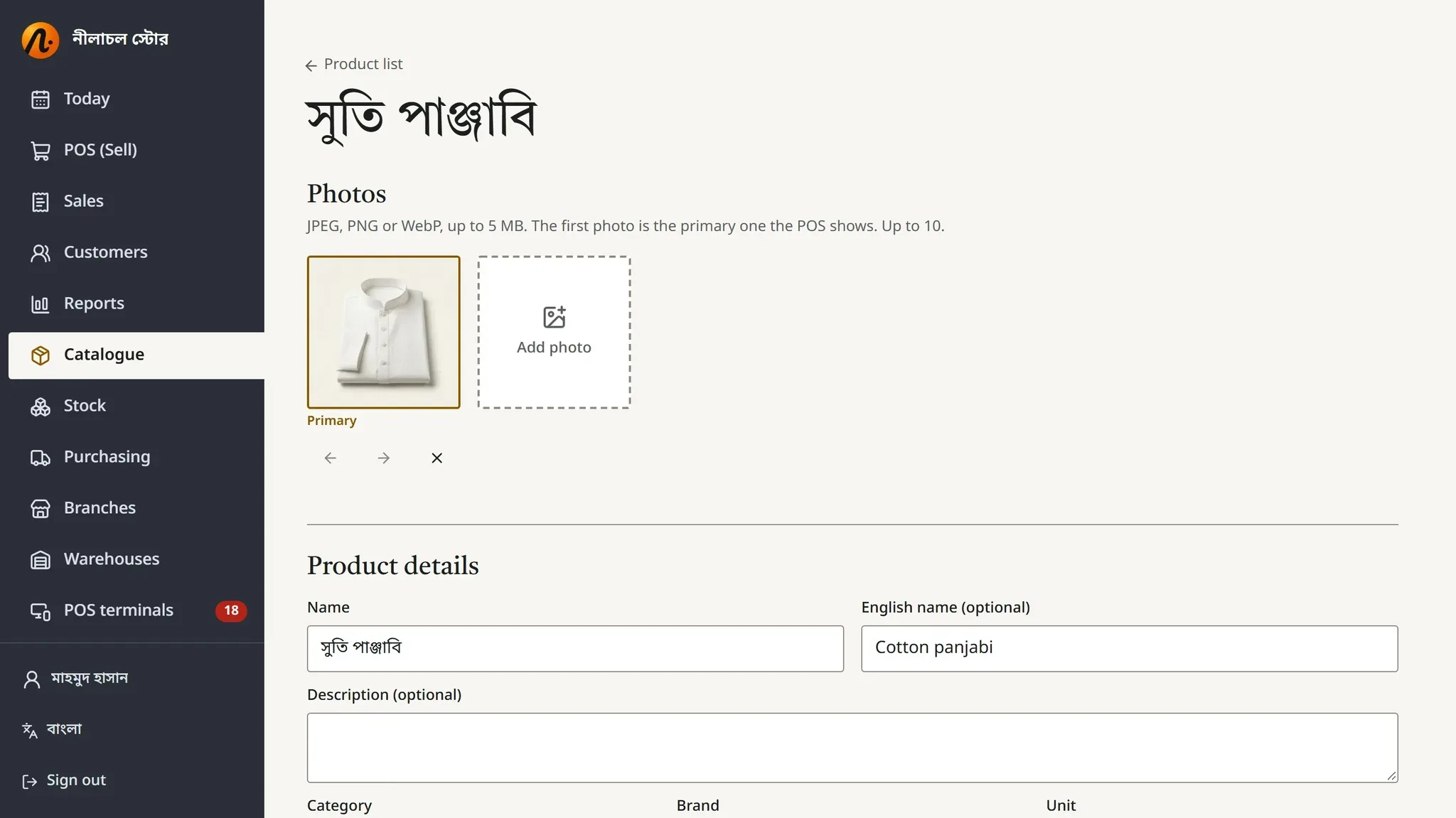
Size and colour variants, each with its own barcode

A product with size and colour variants

One sale, four steps

From scan to receipt, on one screen.

  1. 01

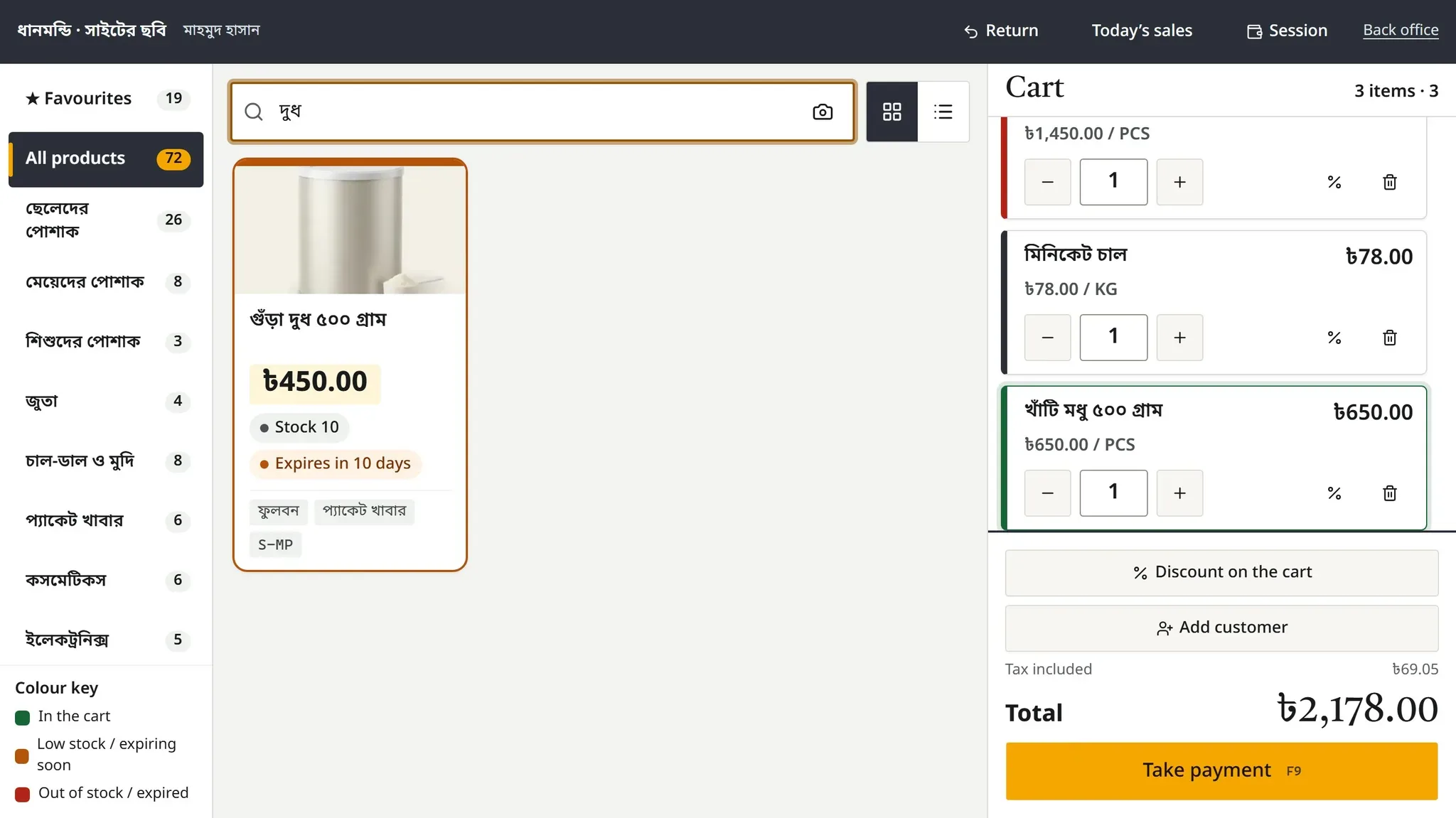
    Scan or tap a card

    Scan a barcode, type part of a name, or tap a product card with its photo.

    Searching at the POS terminal: stock and expiry shown in colour
  2. 02

    Colours show stock and expiry

    Green in the cart, orange low or expiring soon, red out.

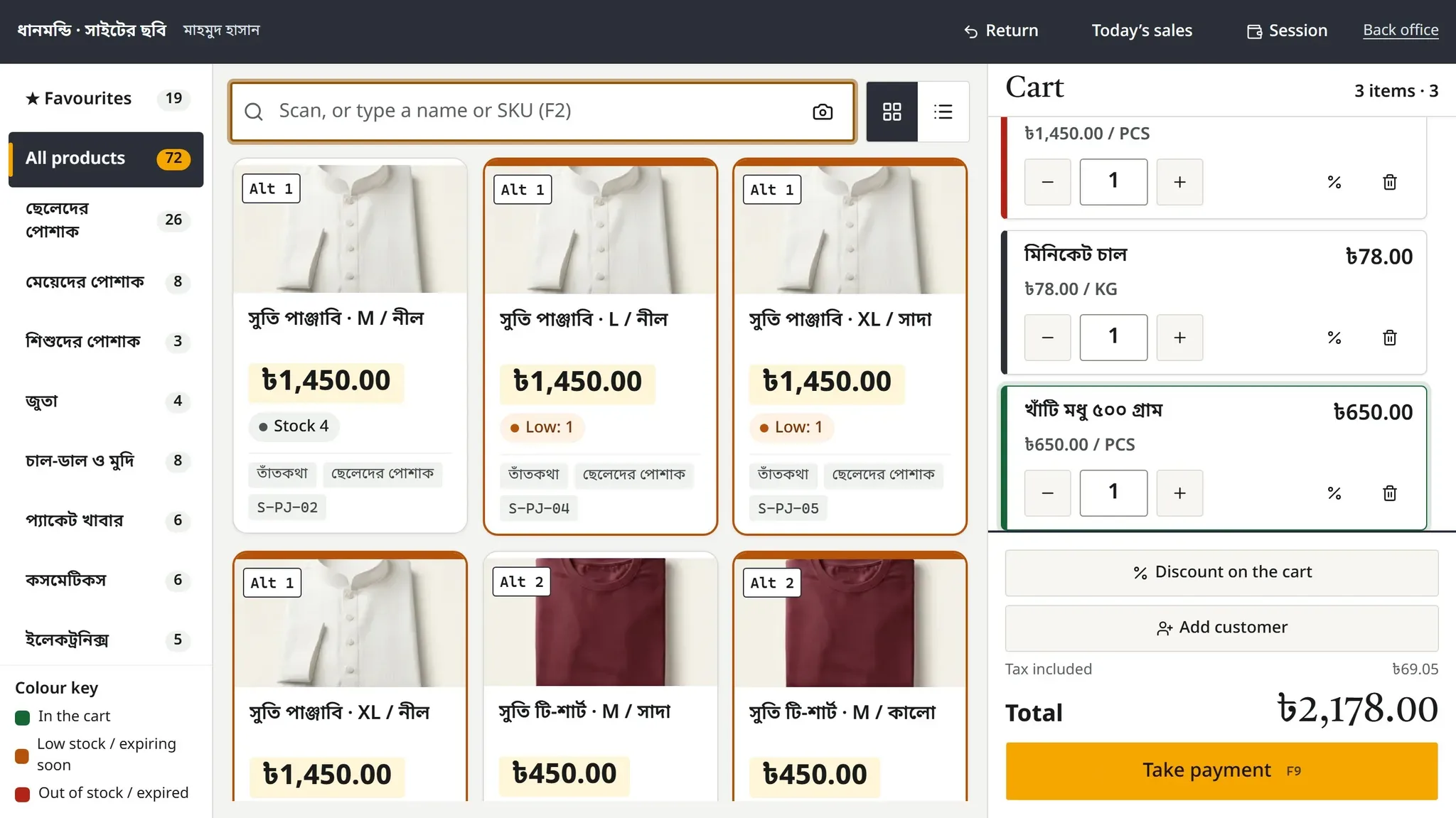
    The POS terminal: categories, product cards with photos and the cart
  3. 03

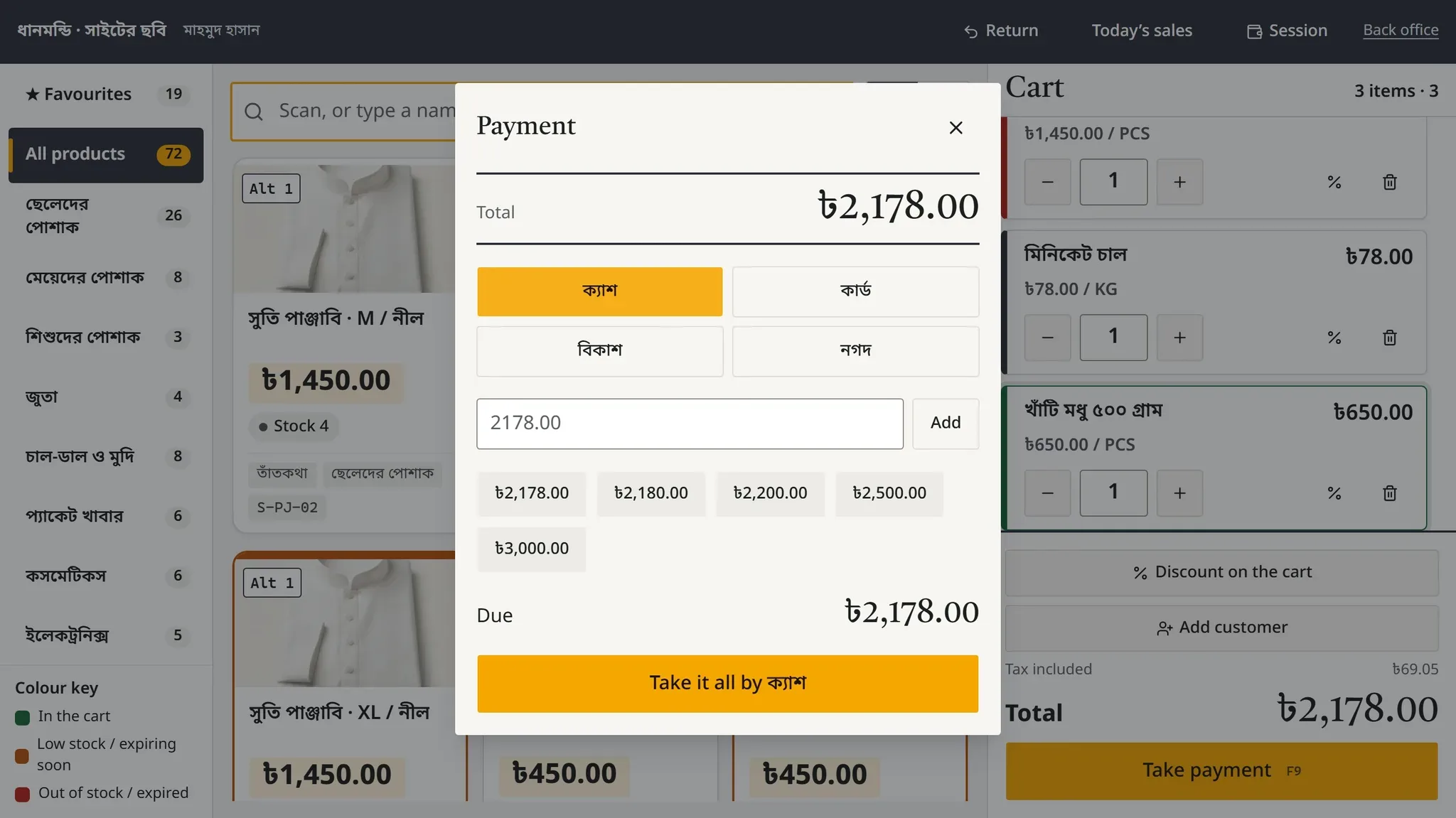
    Cash and bKash together

    Take one sale in more than one way; the change works itself out.

    Taking payment at the POS terminal: cash, card, bKash, Nagad
  4. 04

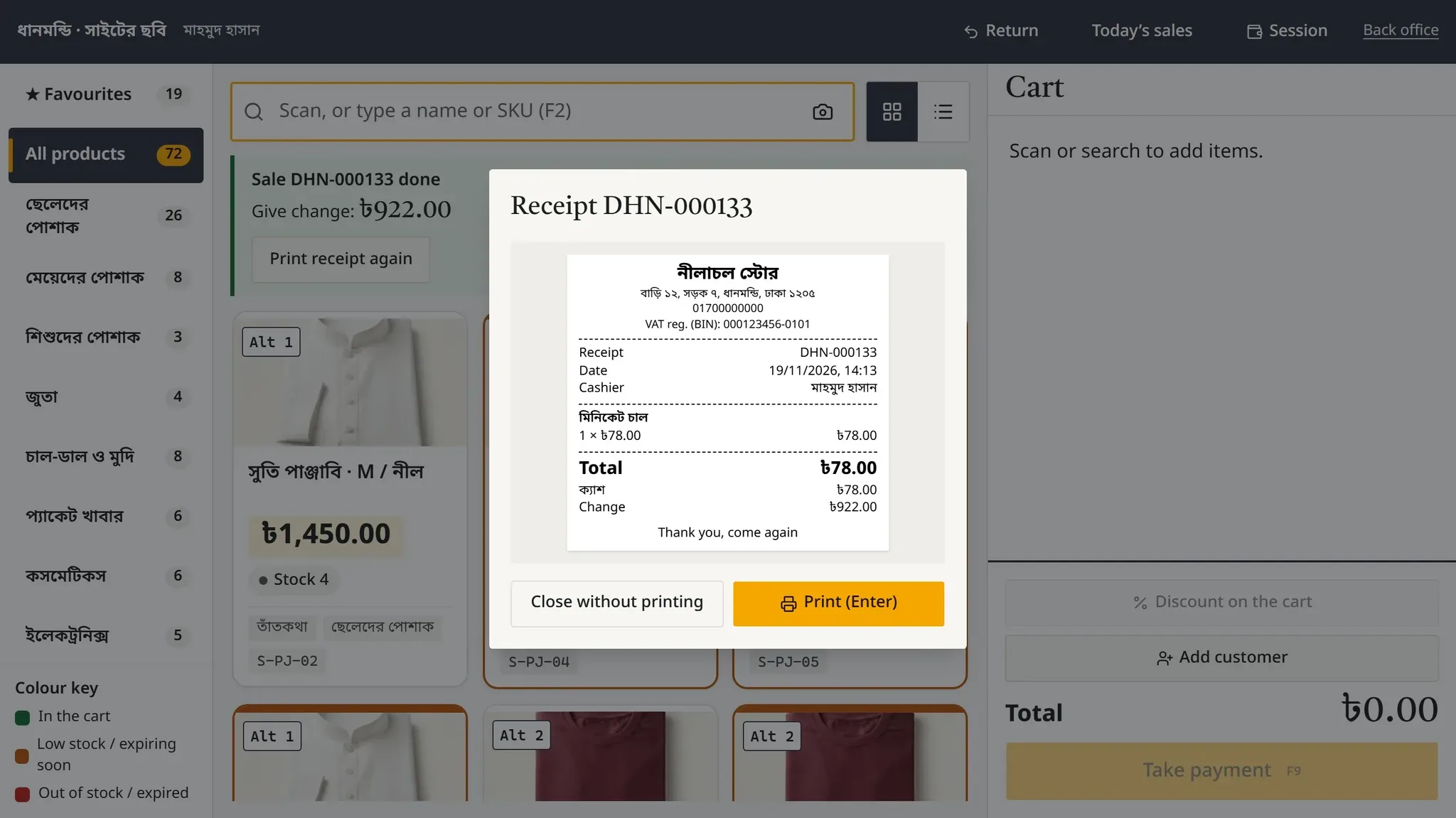
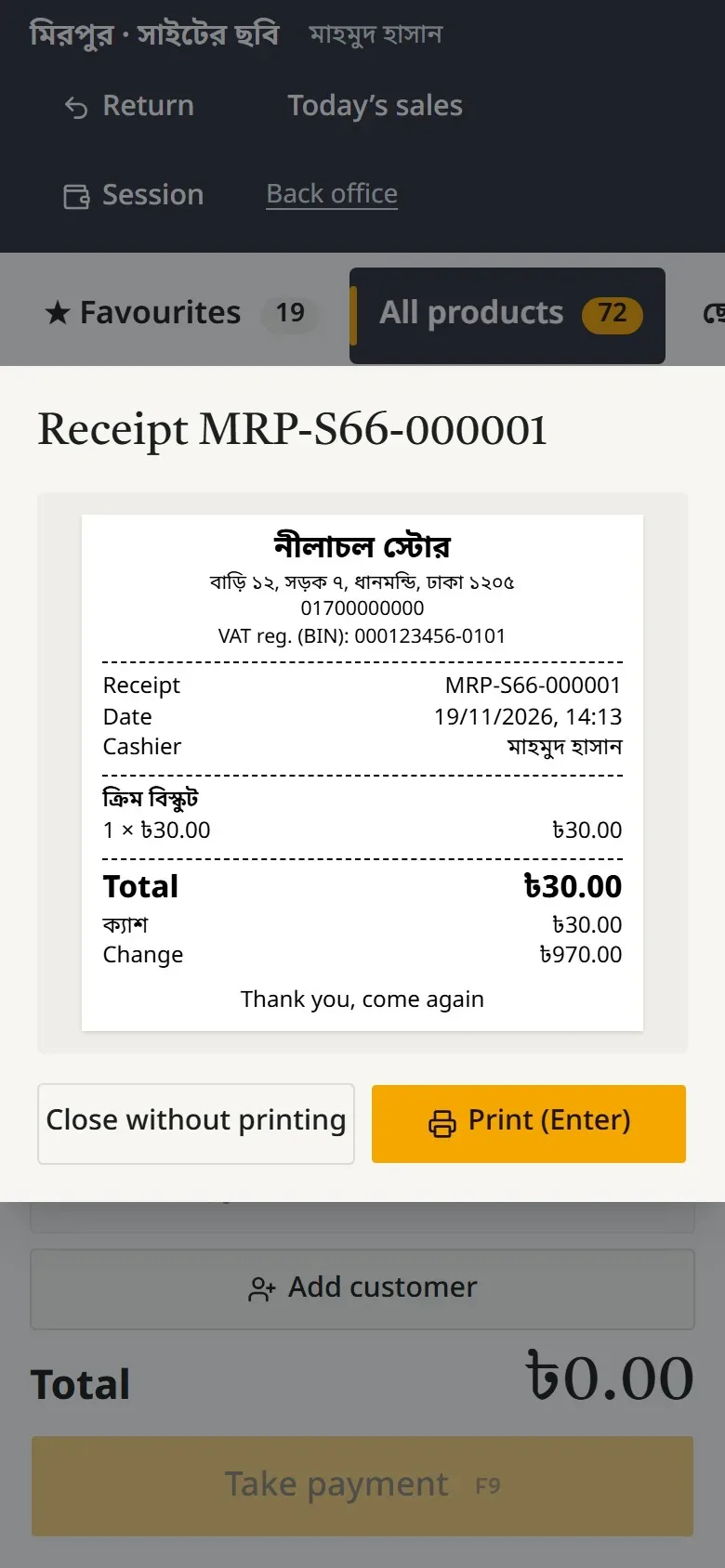
    Receipt printed, drawer open

    As the sale completes, the receipt prints and the cash drawer opens.

    The receipt after a sale, shown before it prints

Offline

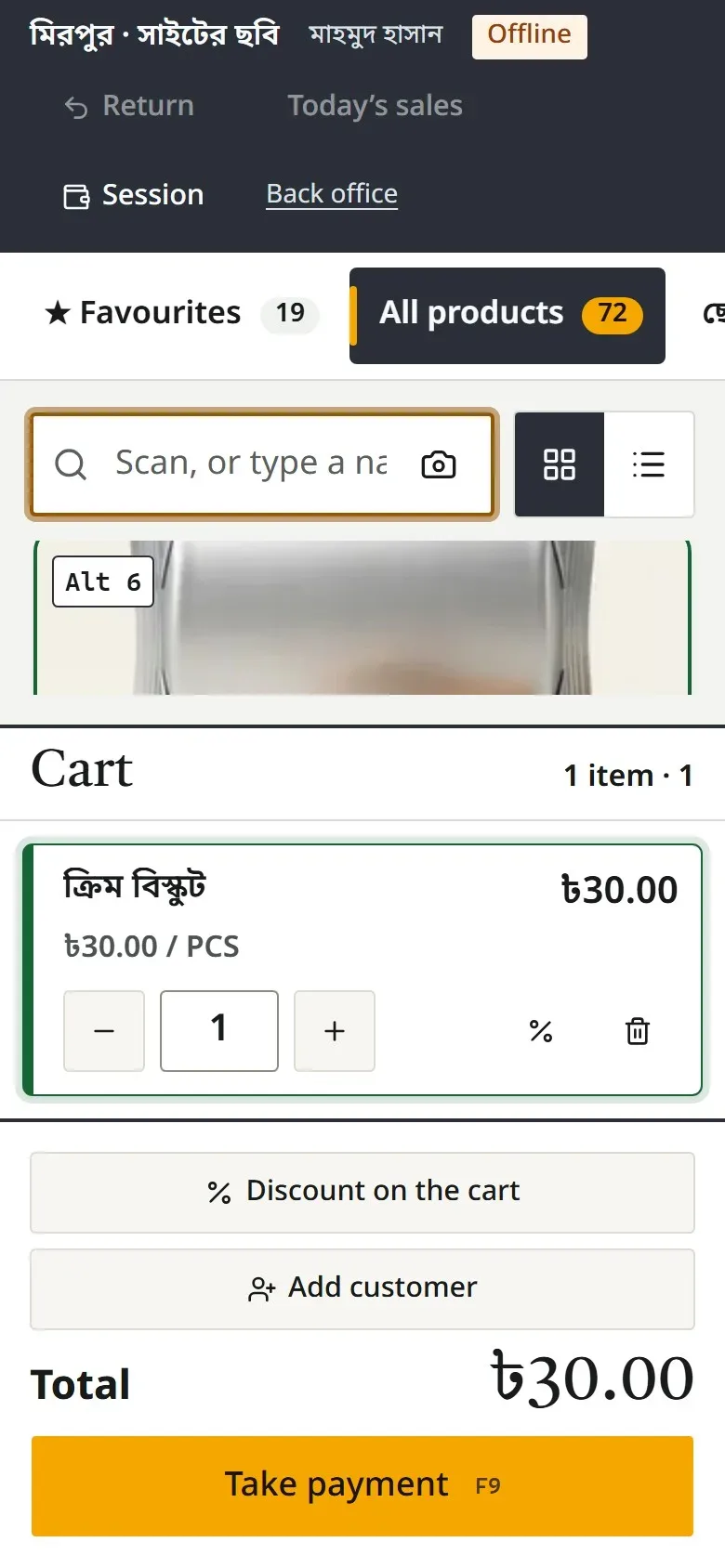
Internet gone? Selling goes on.

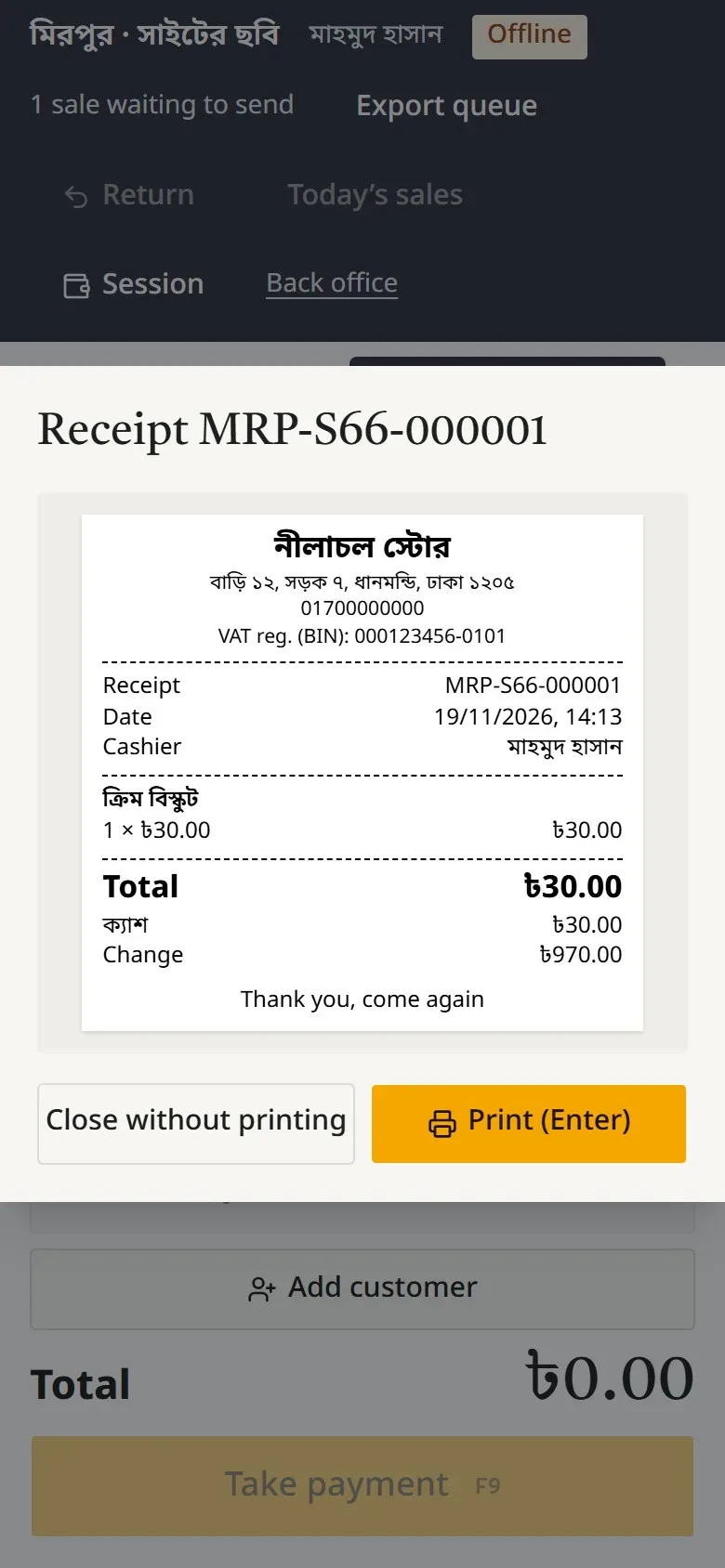
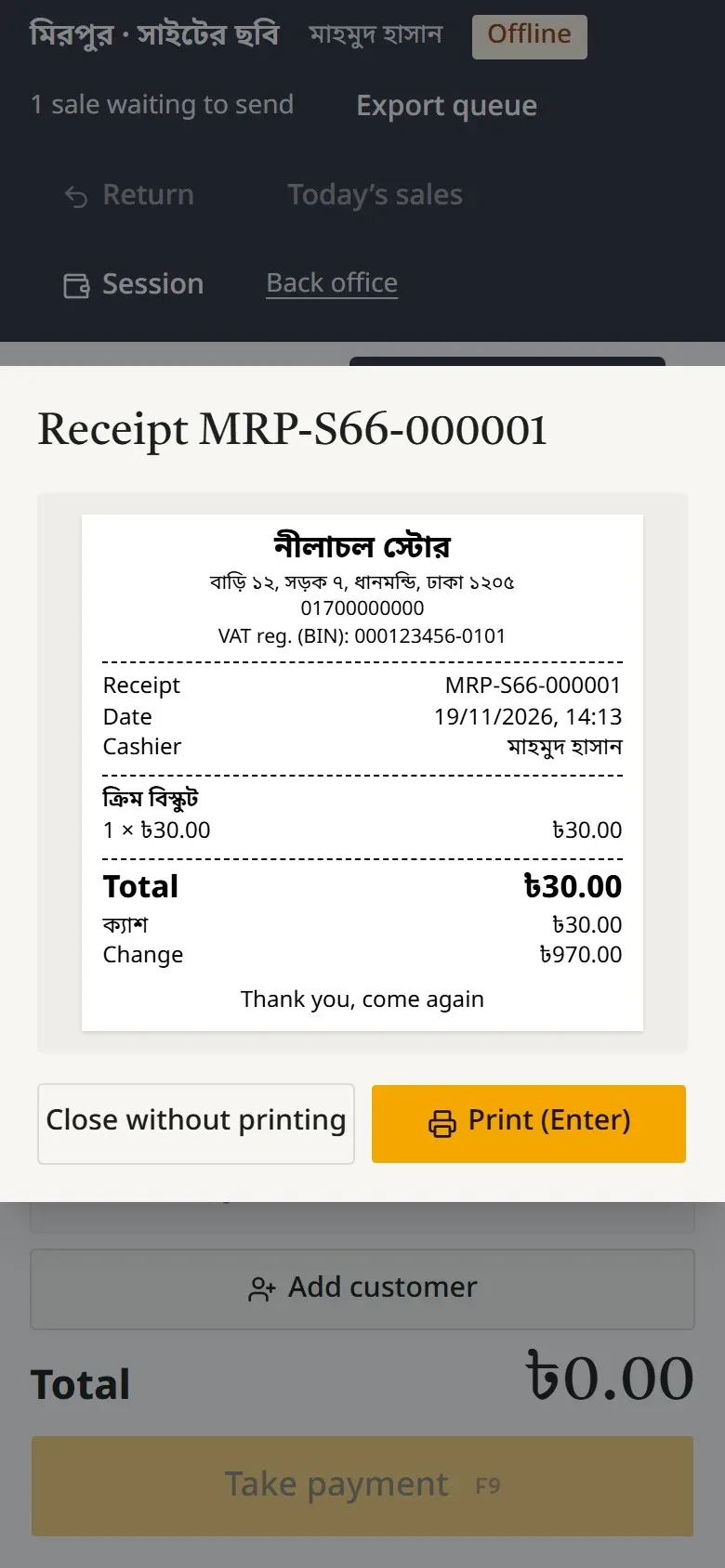
The till keeps its own copy of the product list, gives its own receipt numbers and queues the sales. When the connection is back it sends every one. Signing out never drops an unsent sale.

  1. Internet off, the POS terminal keeps going
    1Internet off
  2. A sale completed offline
    2Sale completed
  3. The sale waiting to be sent
    31 sale waiting
  4. Back online, the sale sent
    4Back online, sent

Illustration

What's on the shelf is what's in the system.

  1. 1

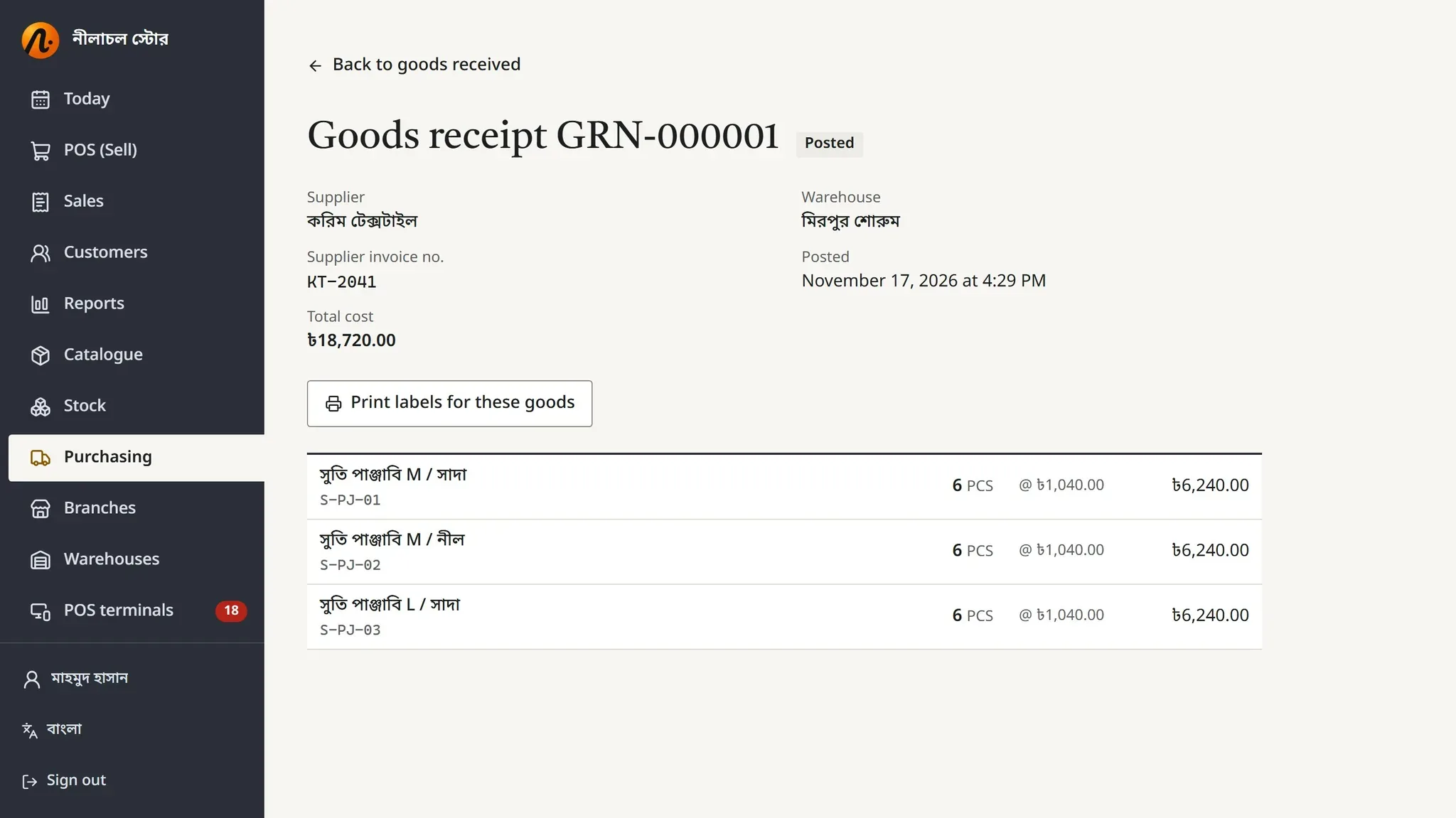
    Goods arrive

    The supplier's invoice, with batch and expiry

    A supplier delivery received, with batches and expiry
  2. 2

    Into stock

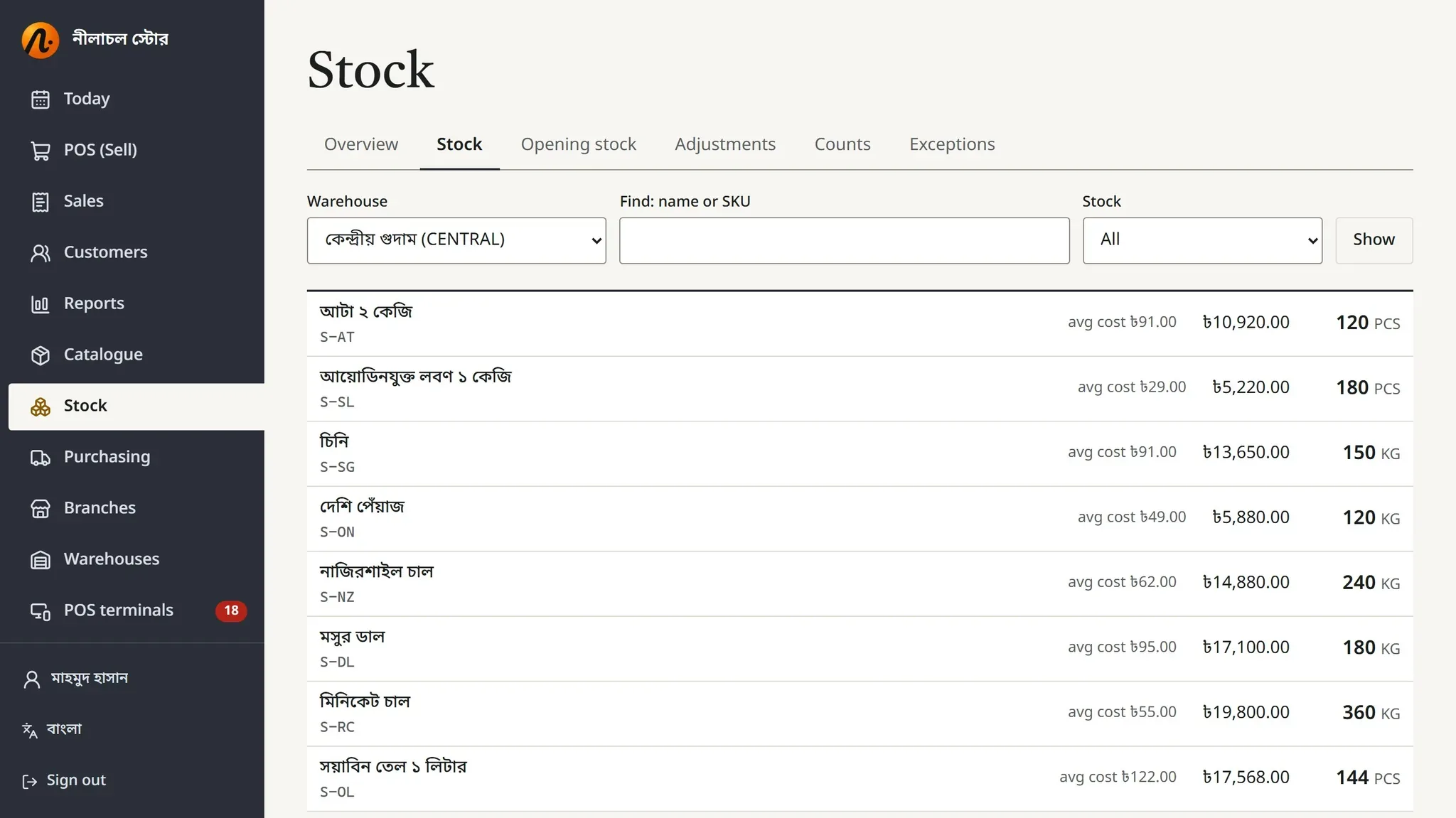
    The average cost updates itself

    Stock overview: low stock and expiring soon
  3. 3

    Earliest expiry sells first

    The till sells from the batch that expires first

    Searching at the POS terminal: stock and expiry shown in colour
  4. 4

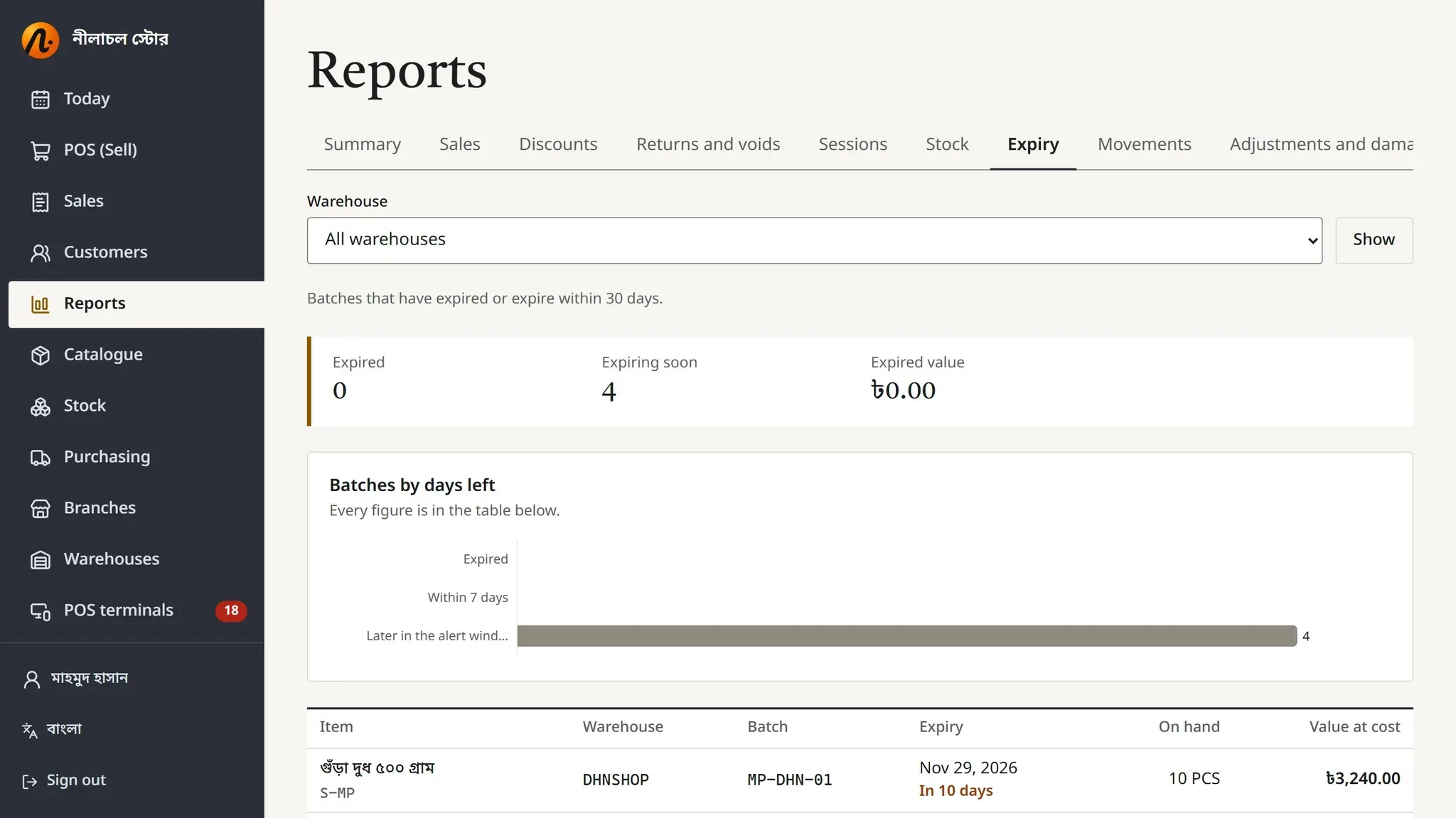
    Expiry report

    See what expires soon; write it off in one step

    The expiry report
  • Counts by batch

    Every batch is counted on its own.

  • Adjustments with approval

    Writing off damaged or lost stock needs a manager's PIN.

  • Low-stock alerts

    The Today page shows what is running low.

  • Several warehouses

    Showrooms and a central store, each with its own stock.

Control

In control, even when you're not in the shop.

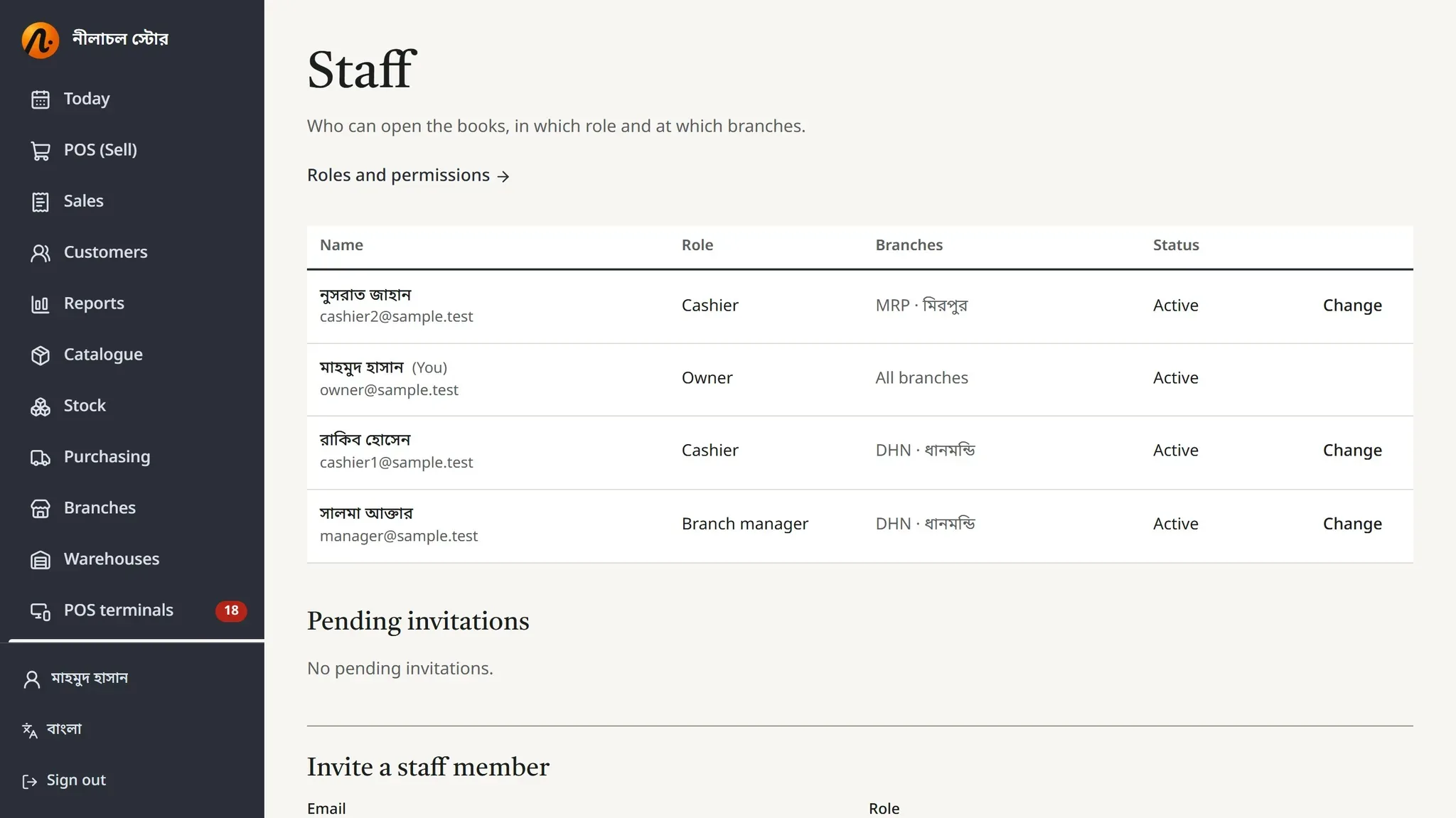
  • Branches and staff

    Everyone sees only their own branch.

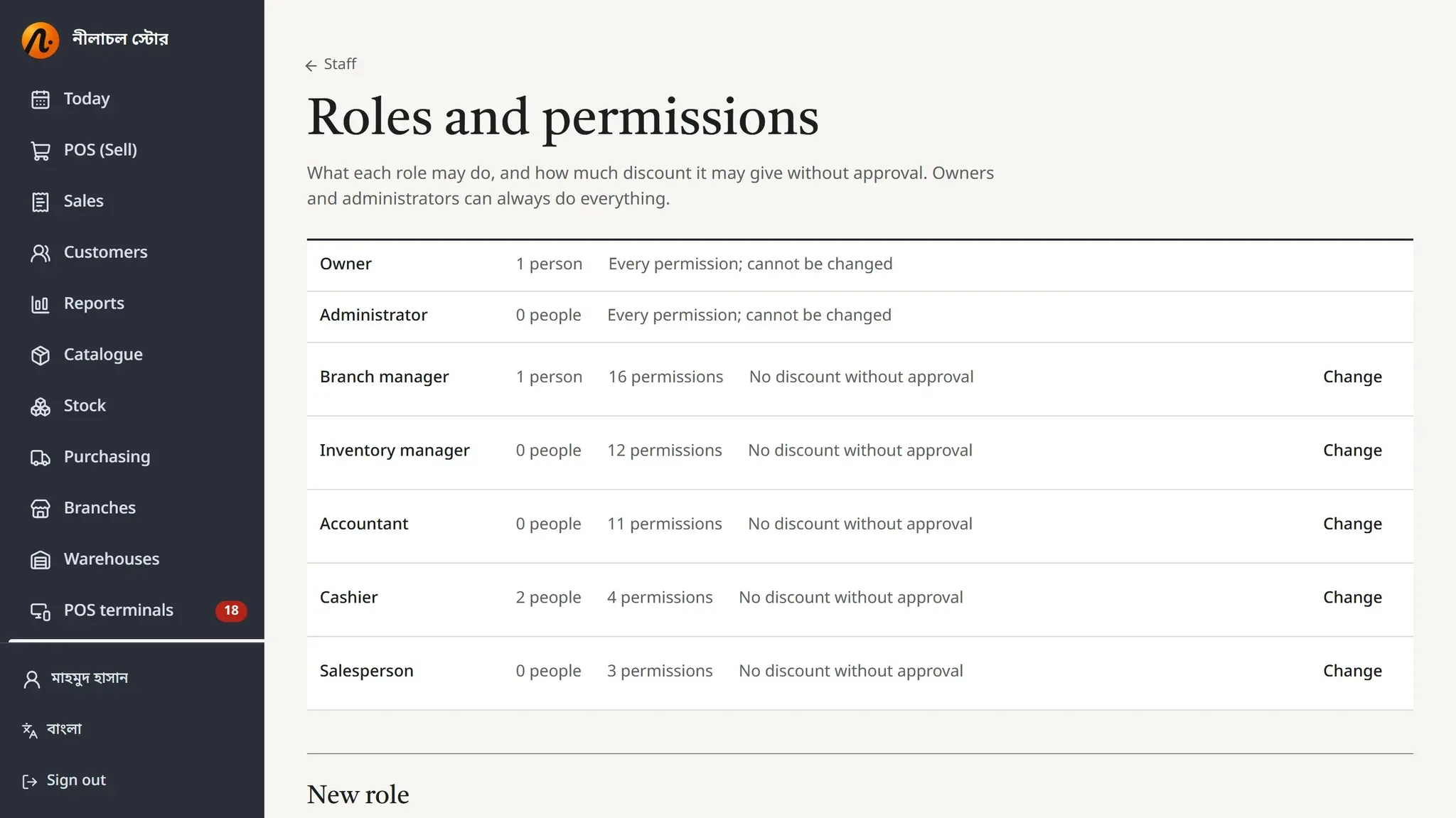
  • Roles and permissions

    Cashier, manager, stock manager, accountant, or your own.

  • The manager's PIN

    No big discount, refund or adjustment without it.

  • Everything recorded

    Who did what, and when.

  • End-of-day count

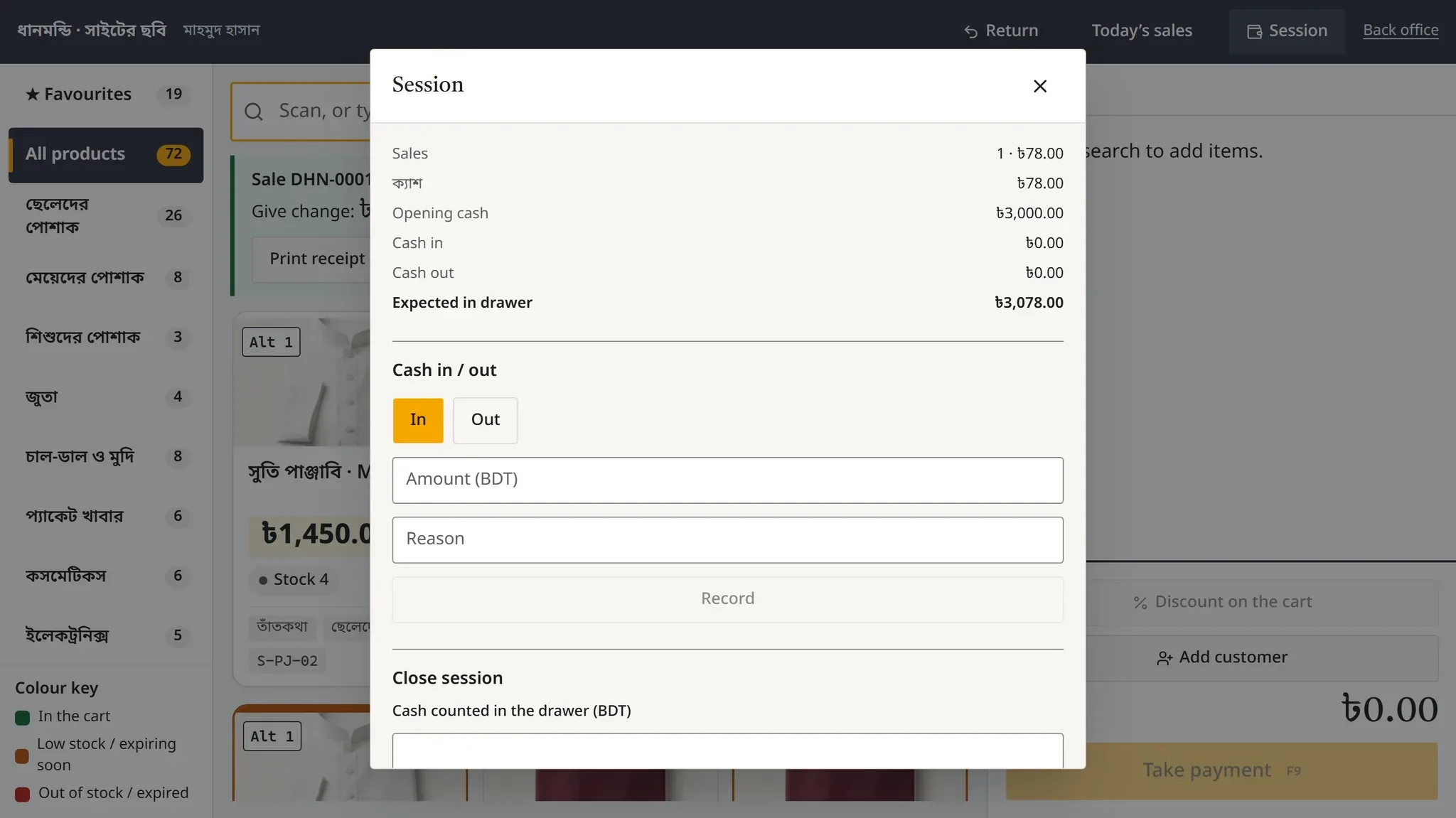
    Each till session closes with its cash counted.

Roles and permissions
Session report: opening cash, sales and expected cash

The whole system at a glance

The POS terminal: categories, product cards with photos and the cart
  • Product cards with photos
  • Categories and favourites
  • Sells offline
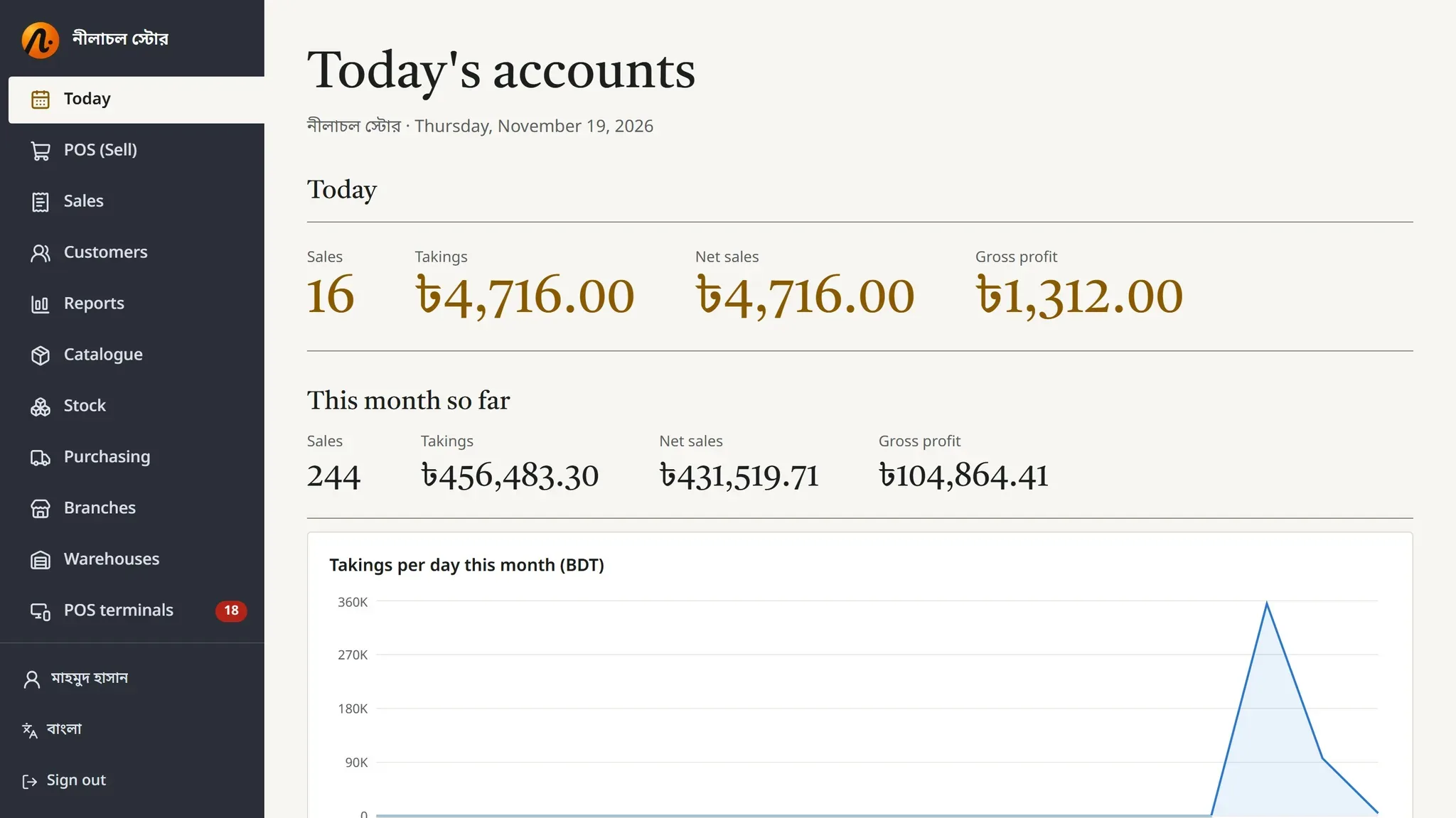
Today: sales, takings, profit, by branch
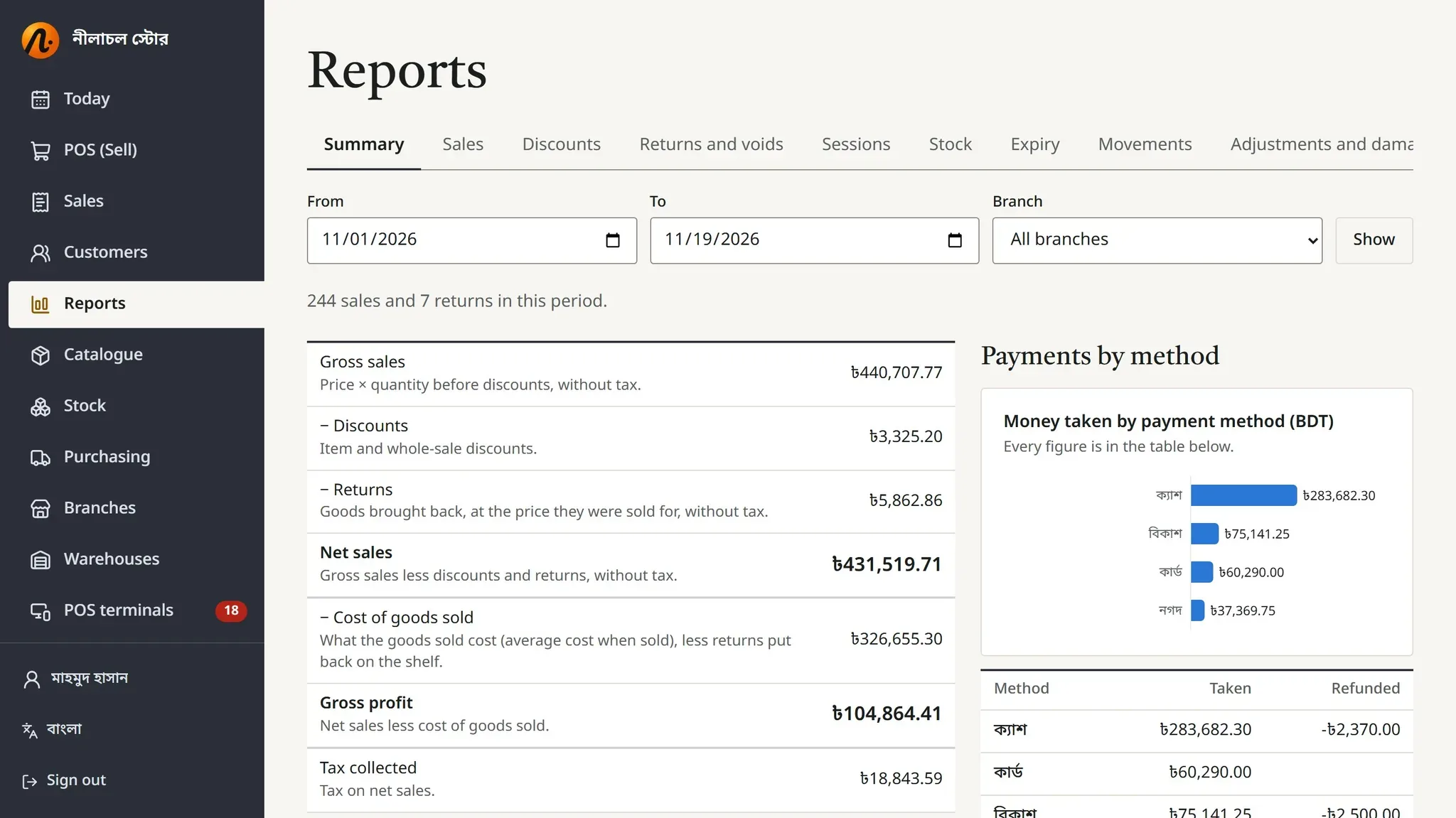
Financial summary

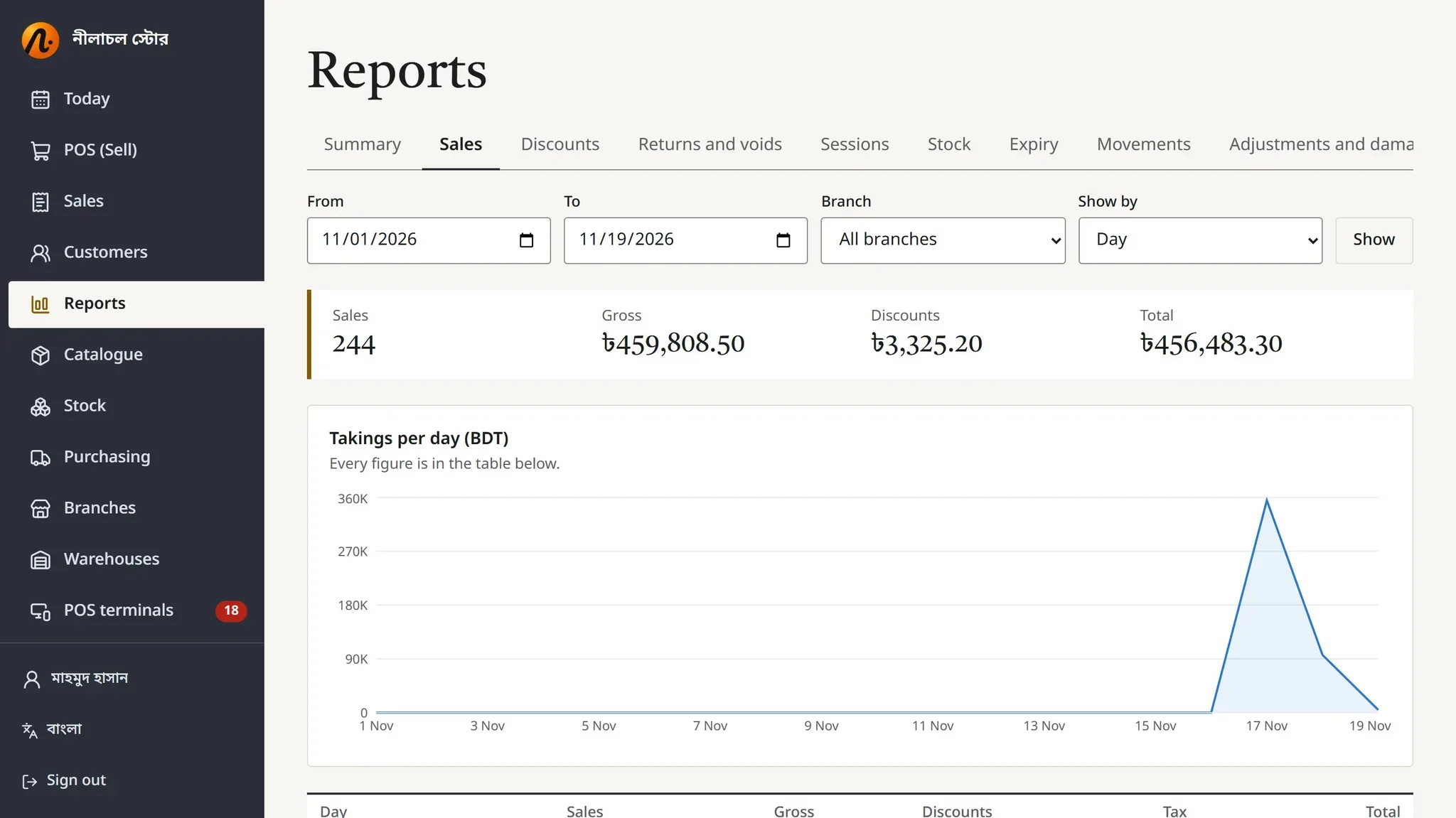
Your numbers, every day

Today's sales, takings, net sales and gross profit — by branch.

  • Financial summary
  • Sales, discount and return reports
  • Stock and expiry reports
  • Export to CSV

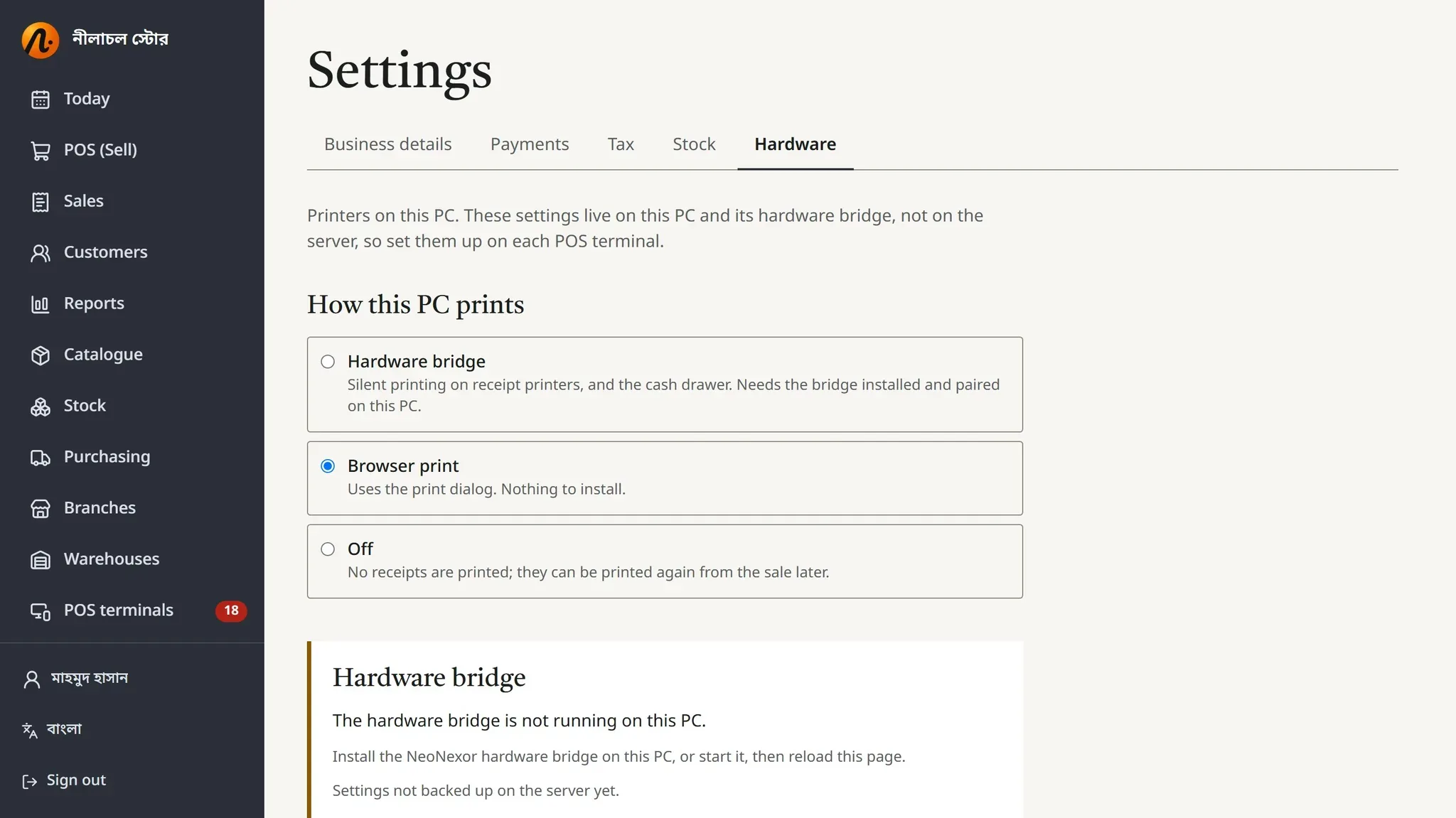
Works with the printers and scanners you have.

Through a small connector program that runs beside the till.

Receipt printers

  • ESC/POS and Star
  • USB, network, serial, Bluetooth

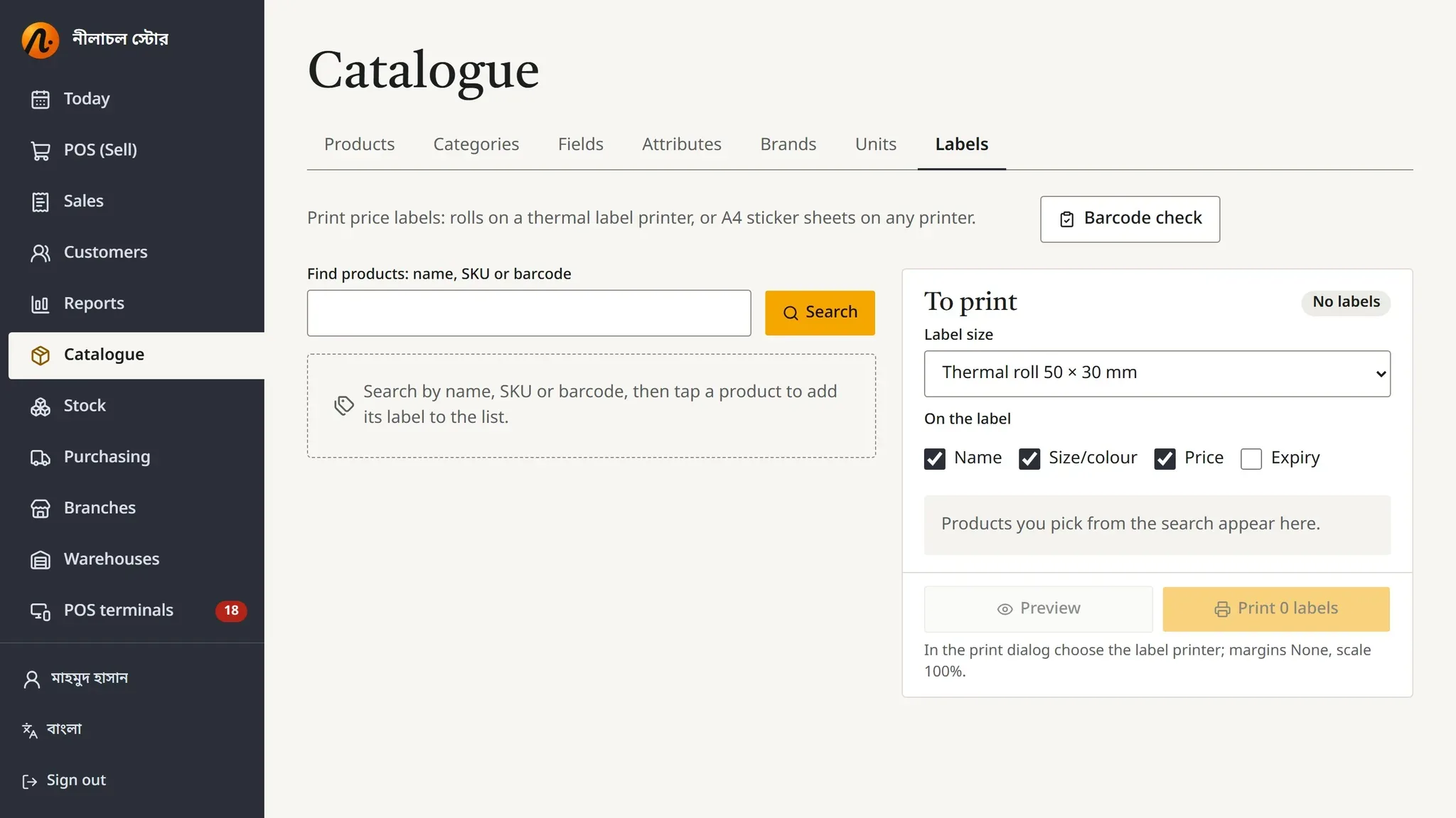
Label printers

  • TSPL, ZPL, EPL
  • Ready price-tag templates

Drawer and scanners

  • Cash drawer
  • Keyboard and serial scanners
  • Phone or PC camera
Hardware settings: printers, drawer, scanners
Hardware details
  • In Bangla

    English too

  • bKash, Nagad, card, cash

    More than one in a sale

  • VAT

    In the price or added; BIN on receipts

  • Taka

    Everywhere

Getting started is easy

  • We set up your shop

    Branches, staff, roles, VAT and payment methods

  • We train your staff

    Cashiers and managers

  • A first-day checklist

    On screen, showing what is left

Questions?

What happens when the internet goes?

The till keeps selling, gives its own receipt numbers and queues the sales. When the connection is back it sends them on its own.

What computer or browser do I need?

An ordinary computer with a current Chrome or Edge. Tablets work too.

Will my printer or scanner work?

It is designed for most receipt and label printers (ESC/POS, Star, TSPL, ZPL, EPL). Tell us your model and we will check.

How do I take bKash or Nagad?

The customer pays in their own app; the till records the method and the transaction number. One sale can be paid in more than one way.

Can I run several branches?

Yes. Each branch has its own showroom, tills and staff; the owner sees them all together.

What can my staff see?

What their role allows, and only their own branch.

Can I track batches and expiry?

Yes. In the categories you choose, every delivery comes in with batch and expiry, and the earliest expiry sells first.

Where is my data, and how safe is it?

Each shop's data is kept separate, with encrypted backups every day.

What do I need to start?

We set up your shop and train your staff. Message us on WhatsApp.

How much does it cost?

It depends on the size of your shop. Ask us on WhatsApp.

See how it would run in your shop.

Message us on WhatsApp or call; we will show you.

Talk on WhatsApp